
Access to Apple Social Login
Create a mobile app in Apple developers
Fill in Apple app configuration at Authing
Creating an Application in Authing
Start development of access
Get Team ID
Before configuring Sign in with Apple's social login in the Authing console, you need to register your iOS application in Apple Developer Portal (opens new window). Once this is done, you can fill in the Authing Dashboard configuration form with the ID and Secret obtained from Apple.
Create an App ID
Go to the Membership page (opens new window) of the Apple Developer Portal (opens new window) and record the Team ID: 
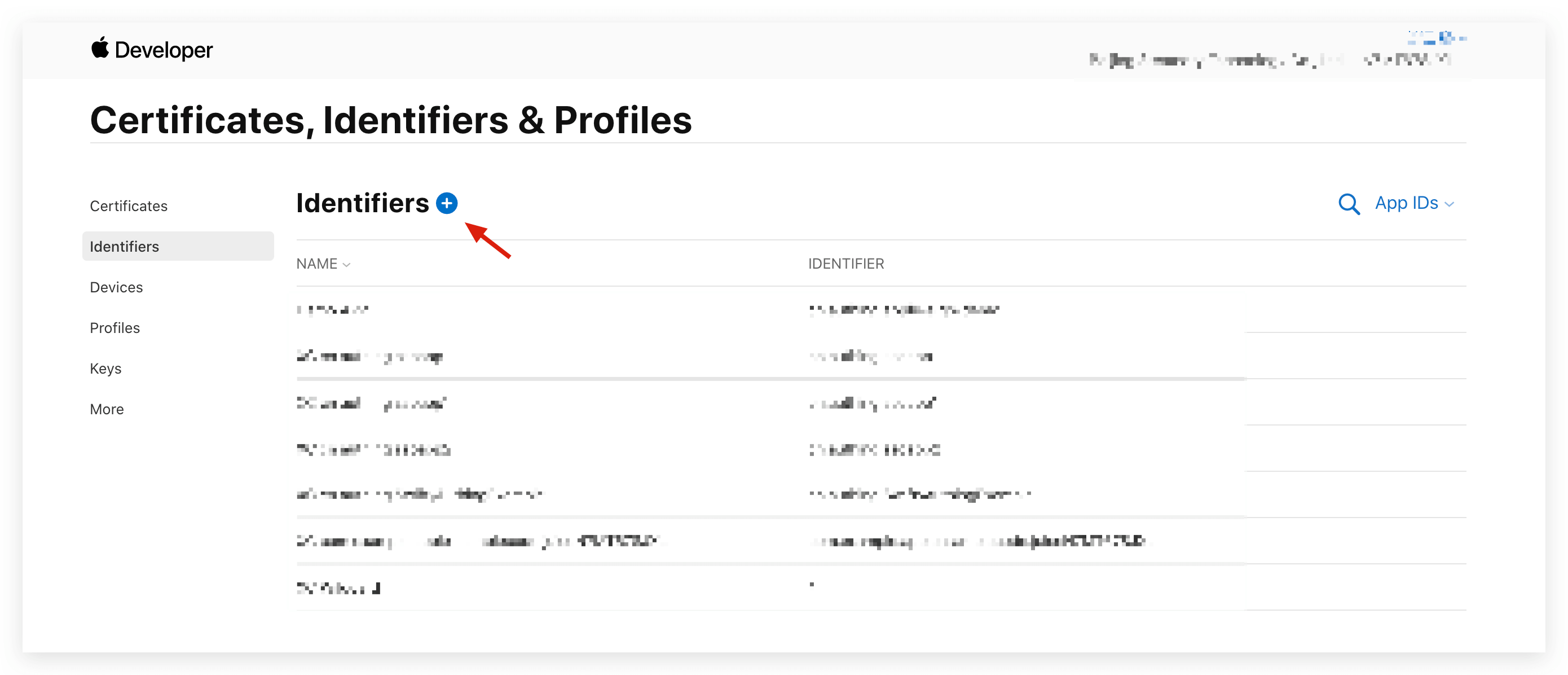
On the Apple Developer Portal, Certificates, IDs, & Profiles > Identifiers page, click the ➕ icon to create an app:
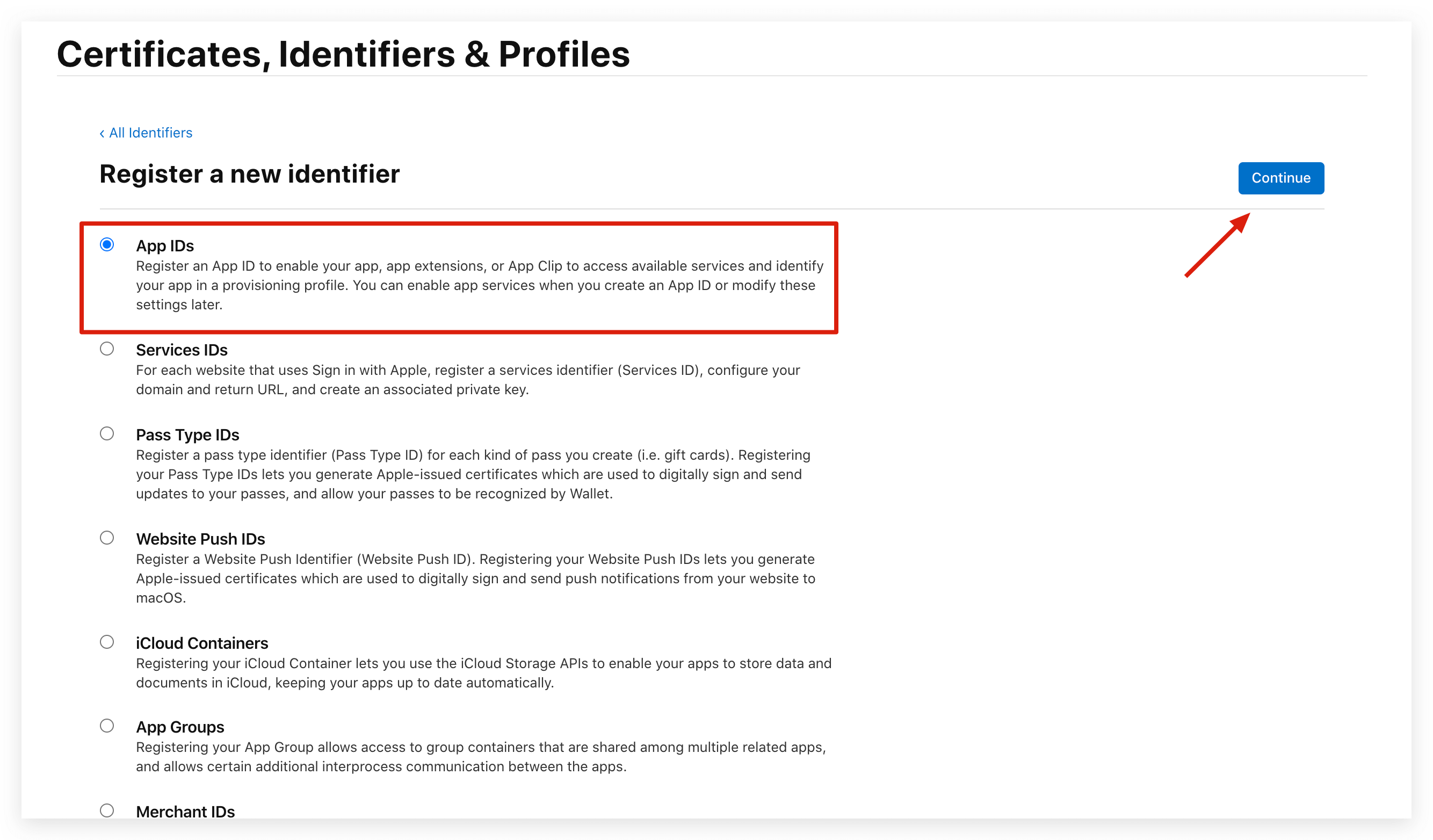
Select App IDs and click the Continue button to continue:
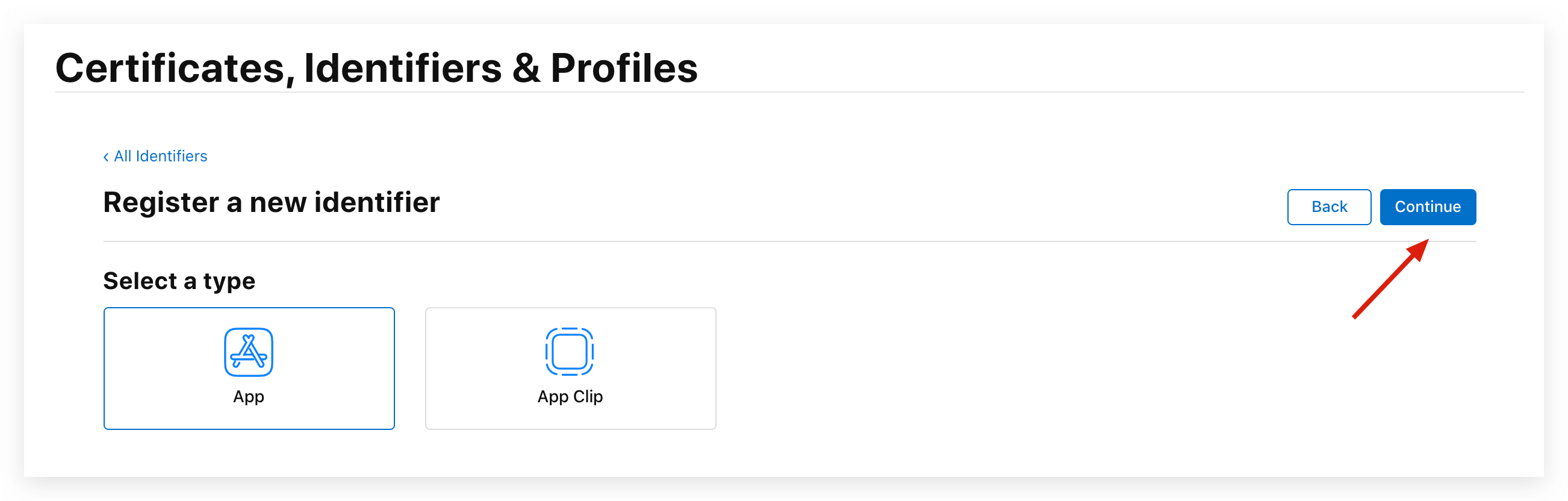
Select the type of application in the format and click the Continue button to continue:
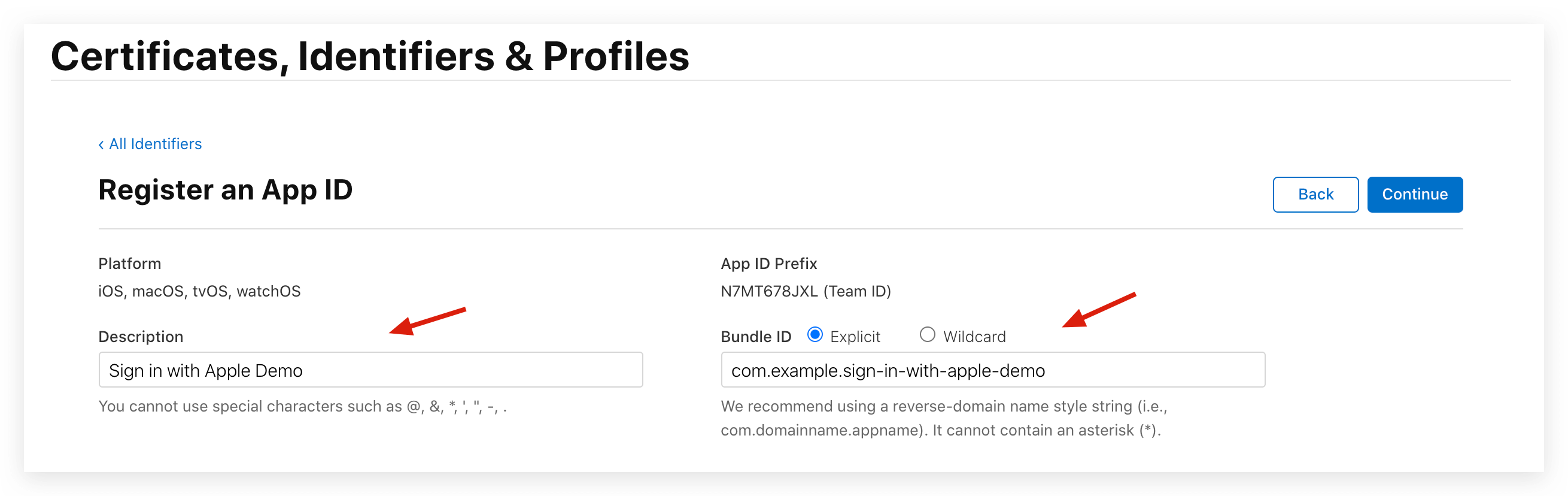
To complete the application description and Bundle ID, record the Bundle ID:
Slide the browser to find Sign in with Apple below and tick
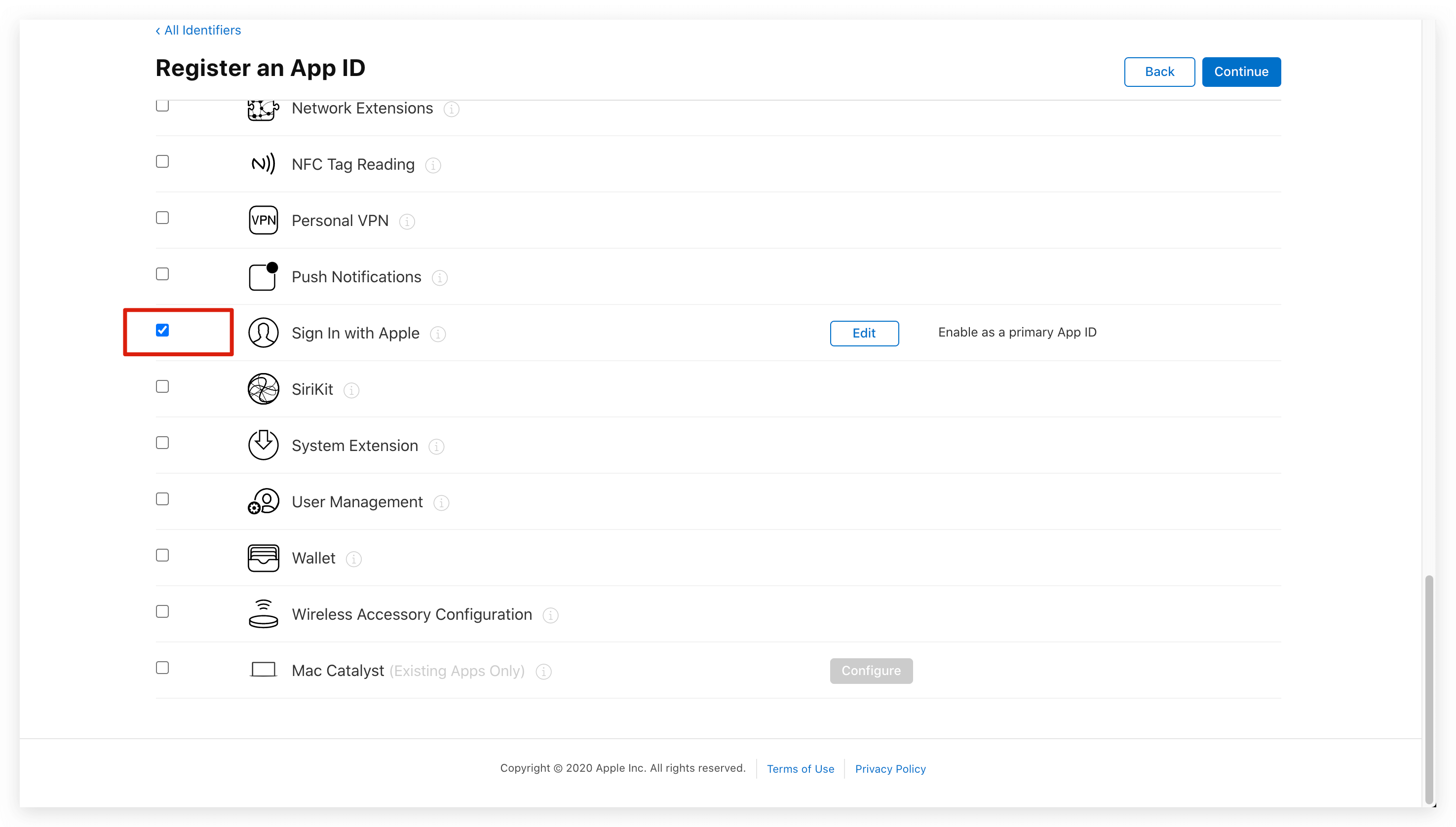
Finally, click the Continue button to create the app.
Create a Service ID
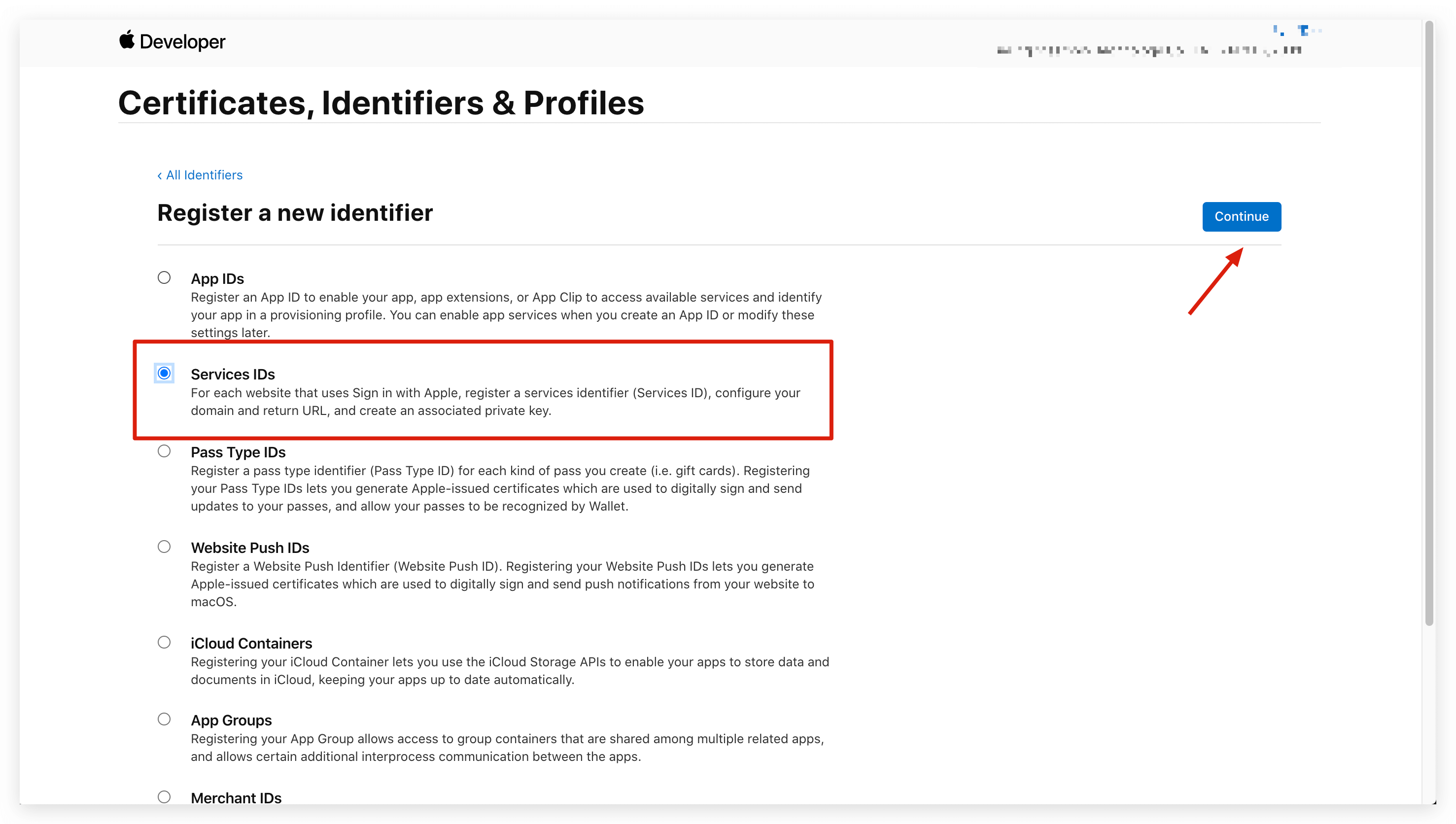
Go back to Certificates, IDs, & Profiles and click the ➕ icon, select Services IDs and click the Continue button to continue:
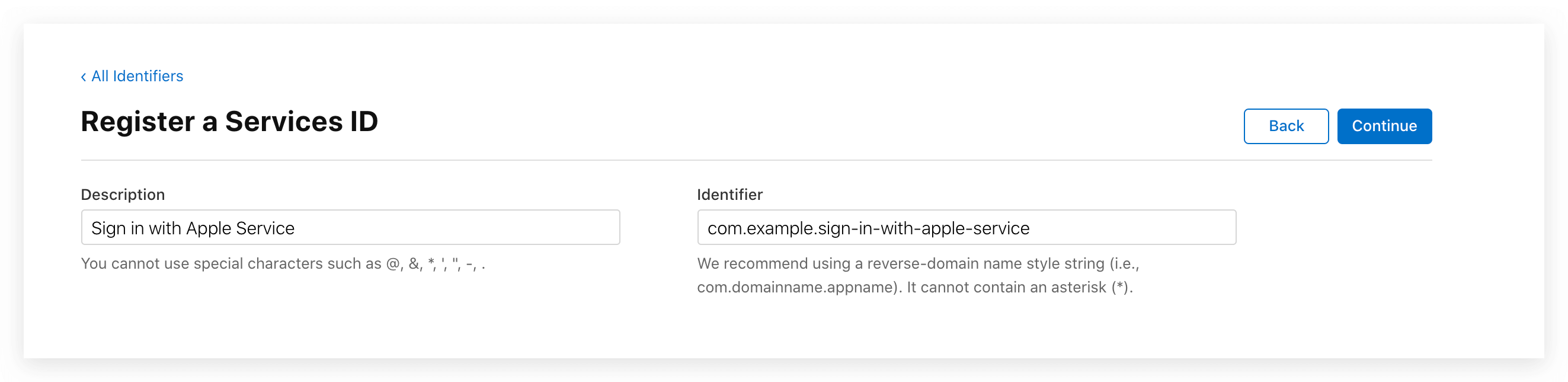
Fill in the description information and Identifier, and then click the Continue button to create the Service:
Locate the service you just created, check Sign In with Apple, click Configure:
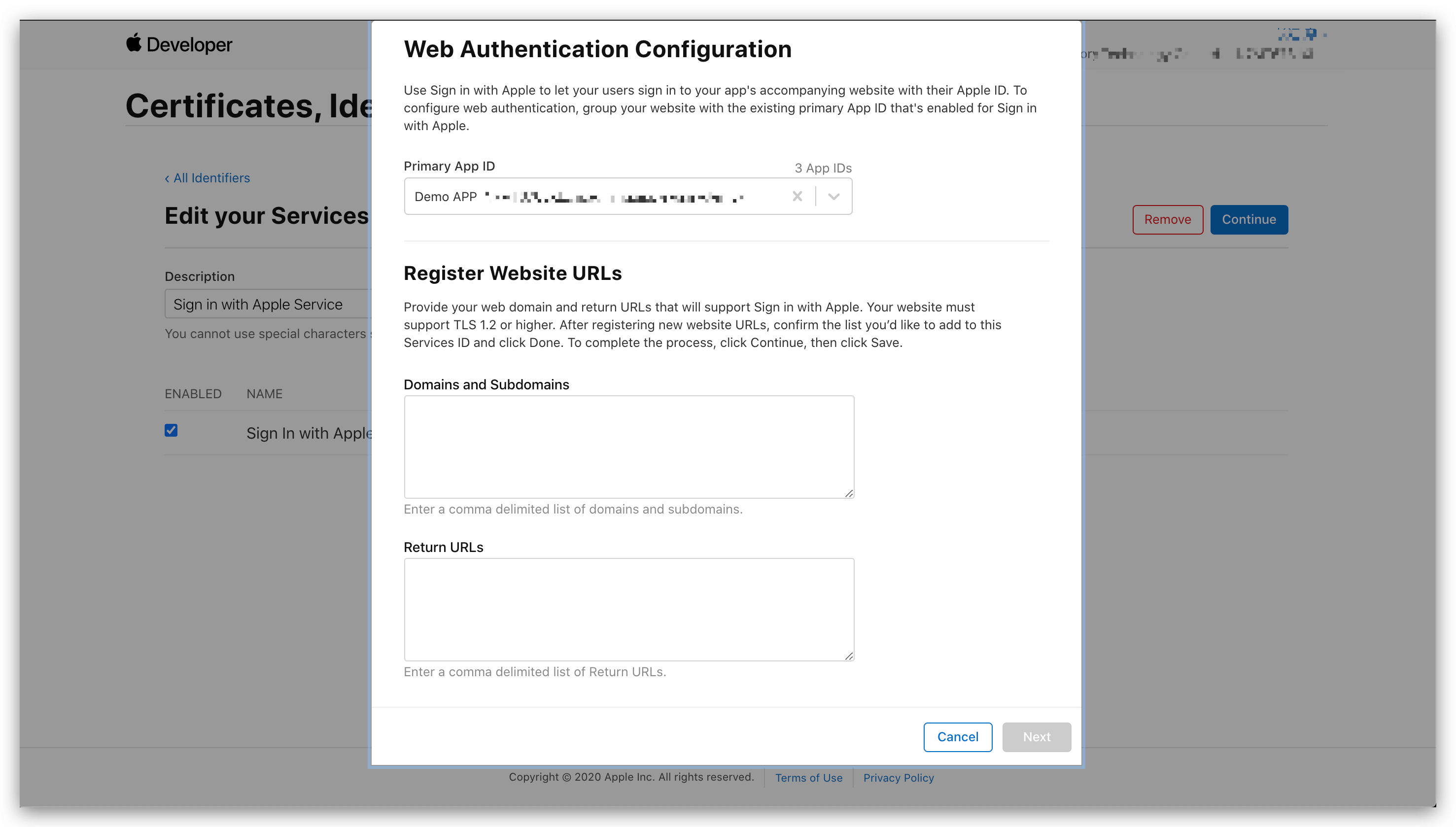
Fill in Domains and Subdomains and Return URLs:
- Domains and Subdomains Please fill in core.authing.cn
- Return URLs Please fill in
https://core.authing.cn/connection/social/{Unique Identifier}/{YOUR_USERPOOL_ID}/callback, Replace{Unique Identifier}with the Unique Identifier of the identity provider you are creating by Authing, and replace{YOUR_USERPOOL_ID}with your UserPool ID.
Click Save, Continue, and finally Register.
Please record the Service ID.
Configure Signing Key
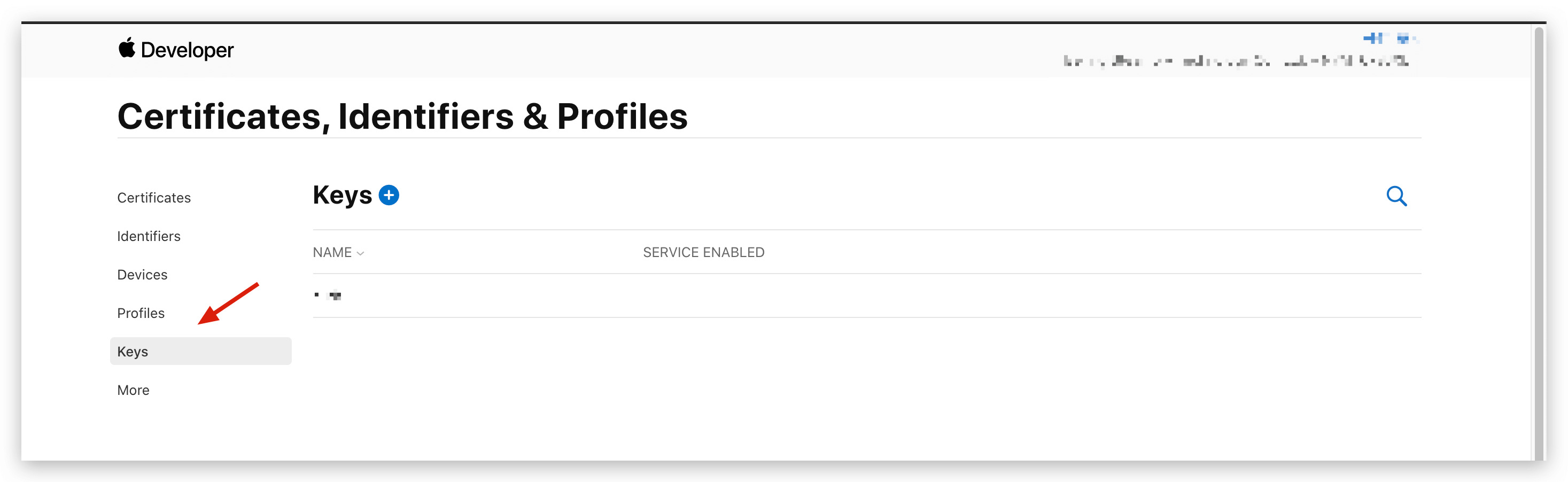
Go back to the Certificates, IDs, & Profiles page, switch to the Keys Tab, and click the ➕ icon:
Enter a name and check Sign in with Apple, click Configure to make sure the Primary App ID you selected is the one you just created:
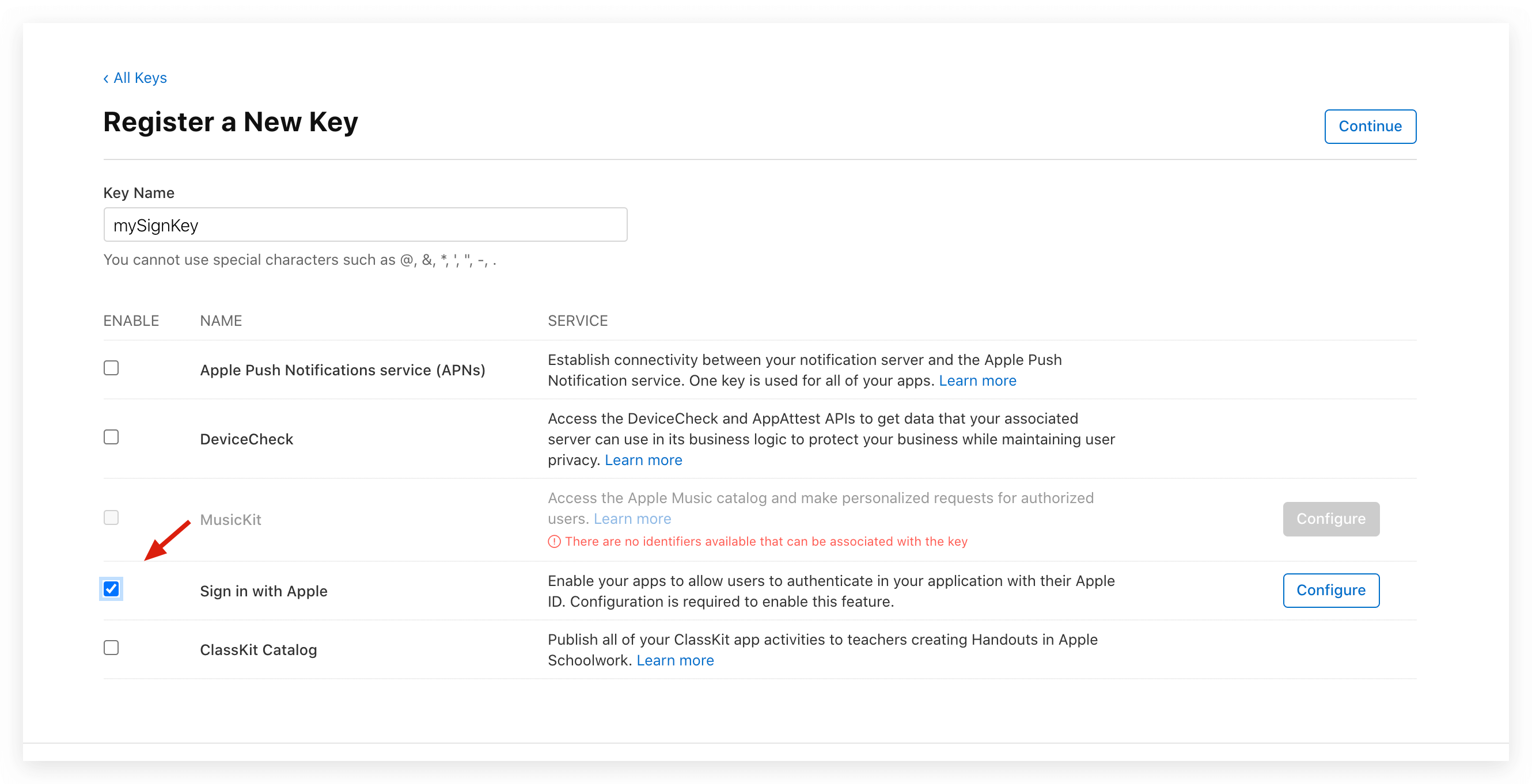

Click Save, Continue, and finally Register.
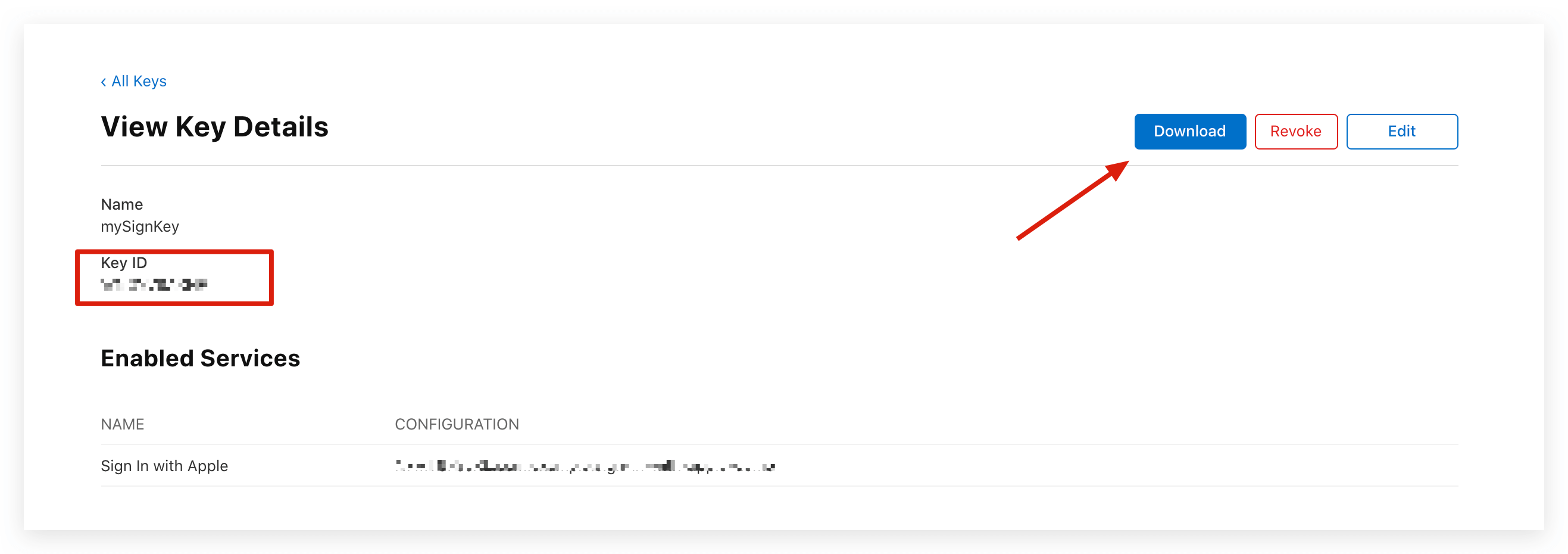
Once created, record the Key ID and click Download to download the key: